How to install a .deb package?
In this article, we'll walk through how to install a .deb package.
A .deb package is the software format used by Debian-based distros (Debian, Ubuntu, Linux Mint, Pop!_OS, etc.). It's basically an archive that contains the program files, installation scripts, and metadata.
We will show you 2 ways of installing .deb: via apt and via dpkg.
- apt (Advanced Package Tool) is a collection of tools used to install, update, remove, and otherwise manage software packages on Debian-based systems.
- dpkg (Debian Package) is the low-level package management system used. It installs, removes, configures, and manages software packages in the .deb format without handling dependencies automatically.
How to install a .deb file?
For this example we will be using BlueVPS NVMe-bKVM 1024 VPS with Debian 13 OS that suits our needs perfectly:
1. Install using apt (recommended):
sudo apt install ./filename.deb
Always add the ./ before a filename or use a full path, for example /root/filename.deb. If you don't do it, apt will search for a package with that name online in its repos.
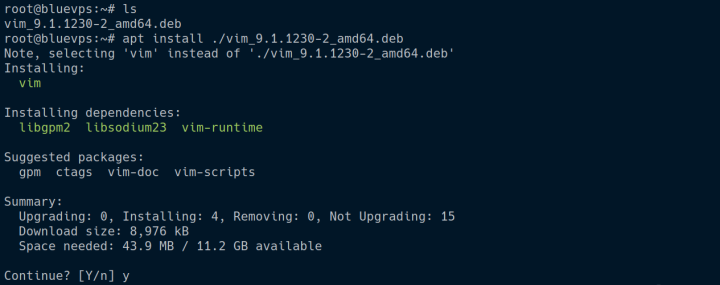
If prompted for confirmation, type y and press Enter.
To verify the installation, run:
apt list --installed | grep package_name
2. Install using dpkg:
sudo dpkg -i package_name.deb
If the command results in a dependency error dpkg: dependency problems prevent configuration of package_name use this command to fix it:
sudo apt --fix-broken install
The command will install all missing dependencies and complete the installation.
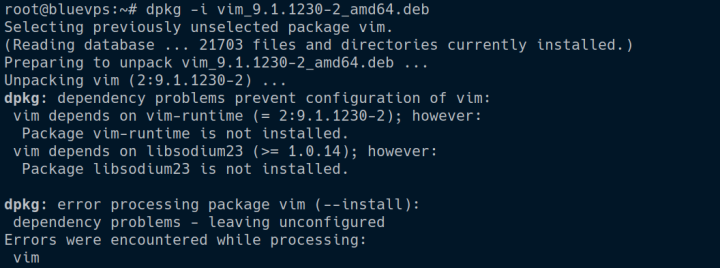
We got the error:
dpkg: dependency problems prevent configuration of package_name
Now let's run:
sudo apt --fix-broken install and then the package will be installed with its dependencies.
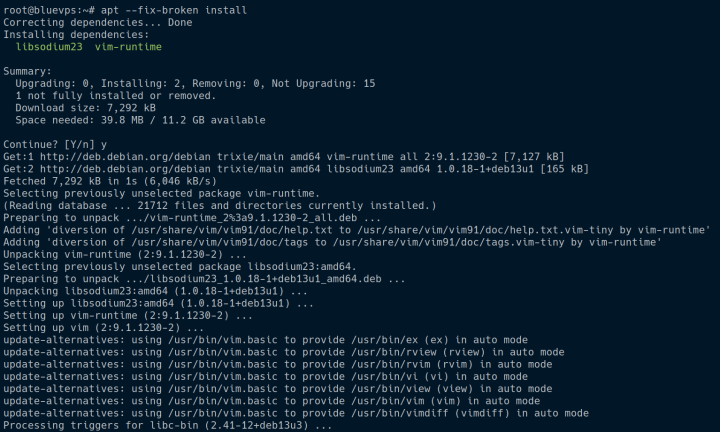
To verify the installation, run:
dpkg -s package_name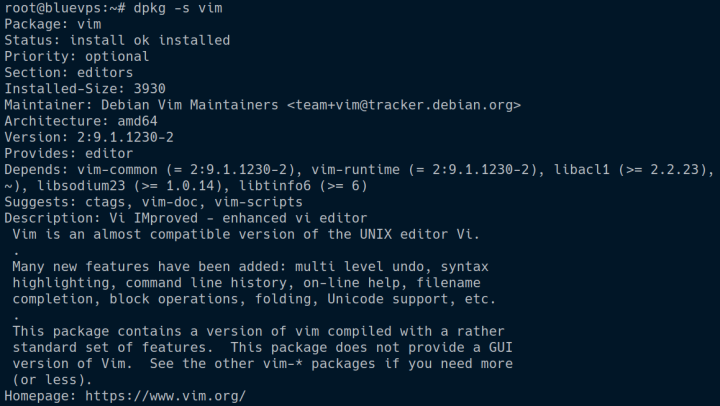
How to remove a .deb package?
Now that you know how to install a .deb package, let's look at how to remove one.
Uninstalling using apt:
Remove the package but keep config files:
sudo apt remove package_name
Remove the package along with its config files:
sudo apt purge package_name
Remove the package together with any dependencies that are no longer needed:
sudo apt autoremove package_name
Uninstalling using dpkg:
Remove the package but retain configuration files:
sudo dpkg -r package_name
Remove the package and all related config files:
sudo dpkg --purge package_name
That's it — now you know how to install and remove .deb packages using both apt and dpkg.
If you need additional guidance, for example, on how to connect to your server via SSH, you can check out our guide: https://my.bluevps.com/knowledgebase/6/Access-VPS-via-SSH.html, where you will find detailed instructions.
Also, if you need a VPS or a Dedicated server at a good price, feel free to check out the options on our website: https://bluevps.com, and choose the solution that best suits your needs.
Blog