How to Install Python on Windows
Python is one of the most popular programming languages in the world. Using Python helps automate various tasks with programs and scripts written in this programming language.
With a BlueVPS Windows VPS, you can install Python directly on your Windows server and use it to run Python scripts, automate tasks, work with files, and develop applications.
In our example, we will use SSD-bWKVM 4096 server with a Windows operating system. To view the available configuration options and order the server, please use the following link: https://my.bluevps.com/store/bluevps-windows/ssd-bwkvm-4096.
Installing Python on Windows
First of all, you need to download Python from the official Python website (https://www.python.org/downloads/). Choose the "Python for Windows" option and download the latest version.
Before starting the installation, make sure to check the Add python.exe to PATH option. This option allows you to run Python directly from Command Prompt without having to specify the full installation path.
Then click "Install Now" and wait until the installation is complete.
Launching Python
After installing Python, you can check whether everything is working correctly by using Command Prompt. Press Windows + R, enter cmd, and press Enter. In the Command Prompt window, run the following command:
python --version
The following command will display the installed Python version.
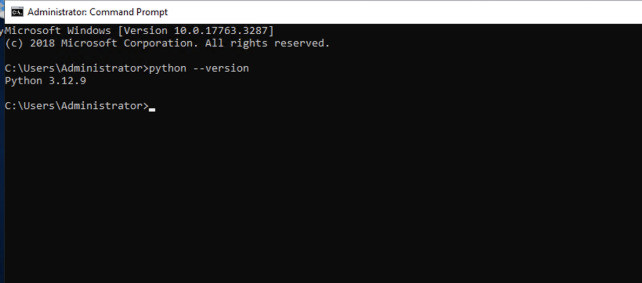
To start using Python, enter the following command:
python
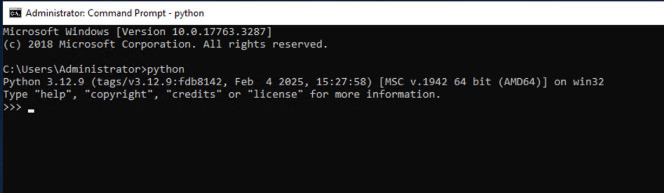
If you would like to run the simple script, please follow these steps:
- Open Notepad and enter the following code, for example:
print("Hello BlueVPS client!")
- Save the file as test.py.
- Open Command Prompt and write:
python test.py
- If Python is installed correctly, you will see:
Hello BlueVPS client!
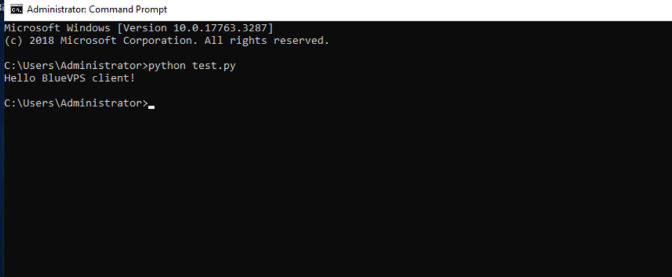
The process is the same for other BlueVPS Windows VPS configurations. The only difference is the Windows version you use and the corresponding Python version you download.
Blog